Technician app

The elevator technician app for Jobs, forms and sign-off.

LiftAuth Ops is the phone app your Technicians use on site. They see their Jobs, fill in the form for each elevator and get the building’s signature on the phone.

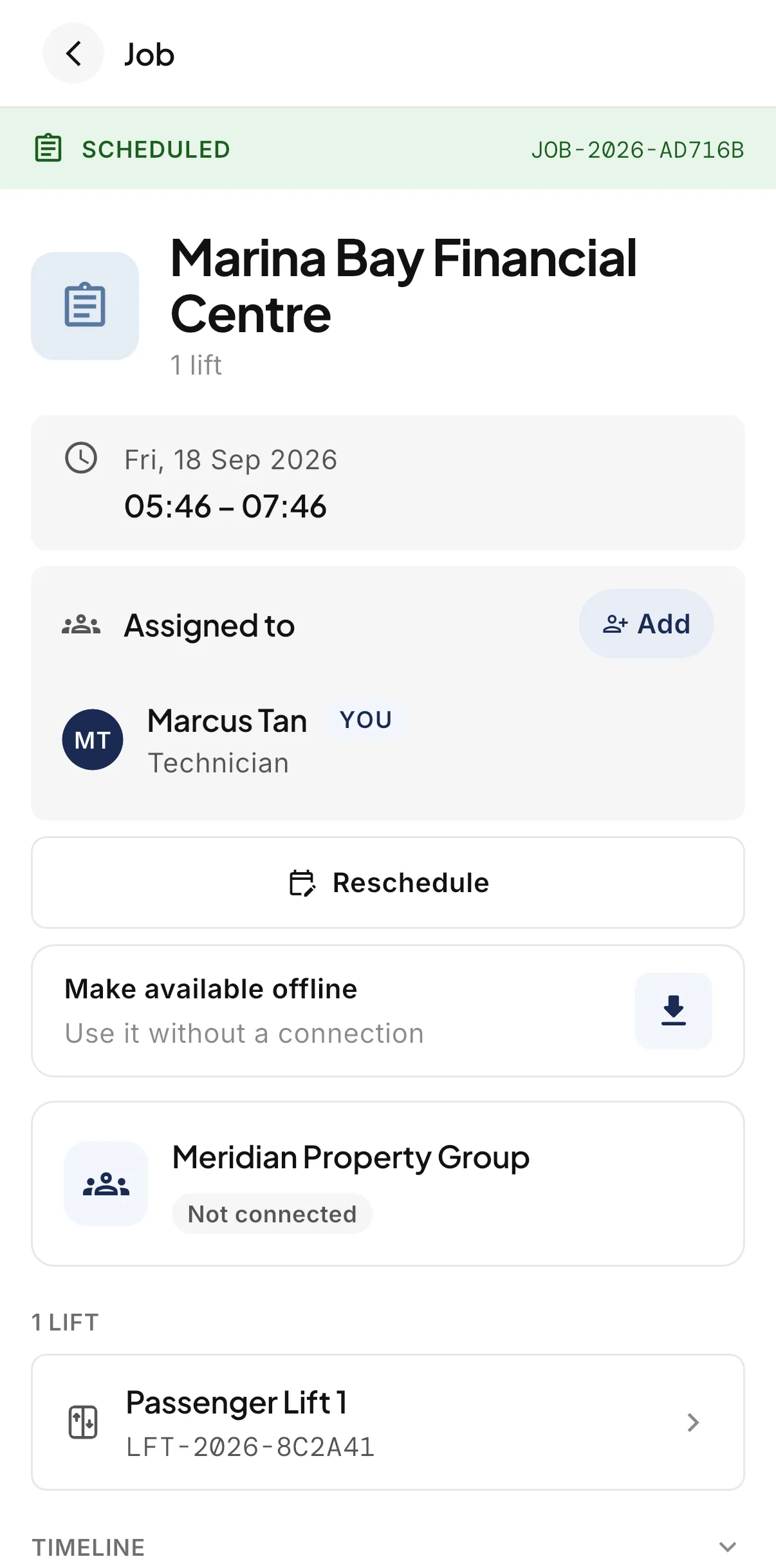
A scheduled Job in the LiftAuth Ops technician app, with the time, the assigned Technician, the option to make it available offline and the elevator on the visit.

What is the LiftAuth technician app?

LiftAuth Ops is the app for your Technicians. Your office adds each Technician to LiftAuth, and they sign in with their email address and a 6-digit code.

In the app, a Technician can do the following:

  • See their Jobs for the day on a calendar or as a list.
  • Fill in the form for each elevator on the Job, with notes and photos.
  • Get the building representative’s signature on the phone or by a link.
  • Create a Job on site for a visit nobody booked.
  • Raise an Issue on an elevator, with photos or video.
  • Answer an emergency dispatch.

What’s included in the technician app.

A Jobs calendar

The day’s Jobs on a calendar, or a list with Upcoming, Work Done and Signed tabs.

Works with no signal

Download a building or a Job ahead. Records and submitted elevators sync when the phone reconnects.

Notes and photos

Every form item takes a note and its own photos. A Record holds up to 96 photos.

Drafts kept

Work saves to the phone as it goes. If the app closes, the draft comes back.

Three ways to sign off

The building representative signs on the phone or from a link. If nobody will sign, the Technician can skip signing.

Team Jobs

On a Team Job, each Technician records the elevators they do. Whoever is last submits the Job for the Team.

Elevator history

Each elevator’s Logbook lists every completed visit. Tap an entry to read the Record as a PDF.

Emergency dispatch

Call-outs ring the phone with a siren. Accept, share your location on the way and mark yourself arrived.

From the Job on the calendar to a signed Record.

01The day’s Jobs

Jobs appear on the Technician’s calendar.

Tap Jobs to see the day. Each card shows the time, the building and how many elevators the visit covers.

A red flashing tile marks breakdown work. A check mark shows the Job is downloaded for use with no signal.
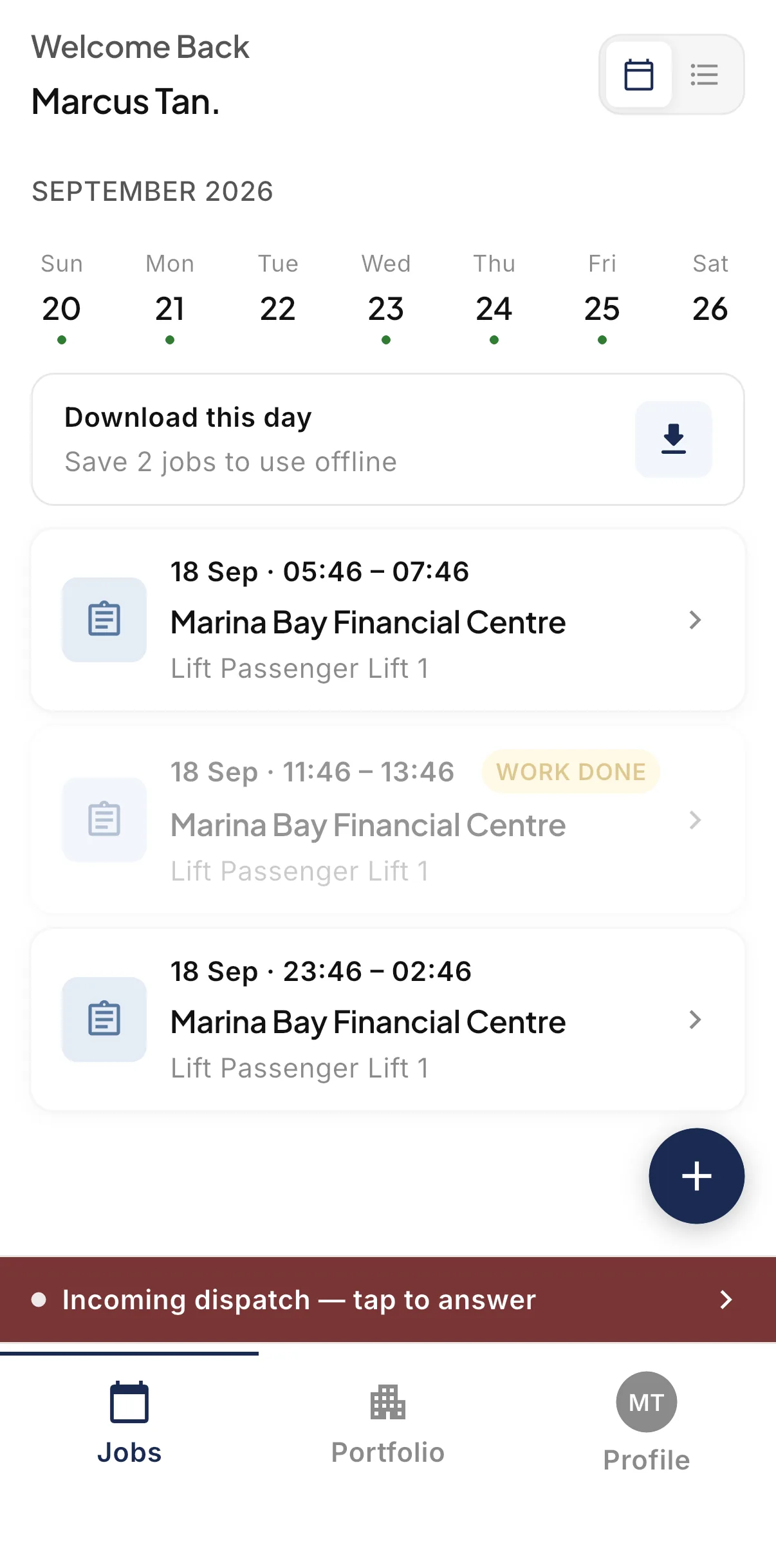
The Jobs calendar in the LiftAuth Ops technician app, listing the day's elevator maintenance Jobs.
02Fill in the form

Record each elevator on the Job.

Tap Start Record and the right form opens. Items can be pass or fail, text, numbers, dropdowns, dates or photos.

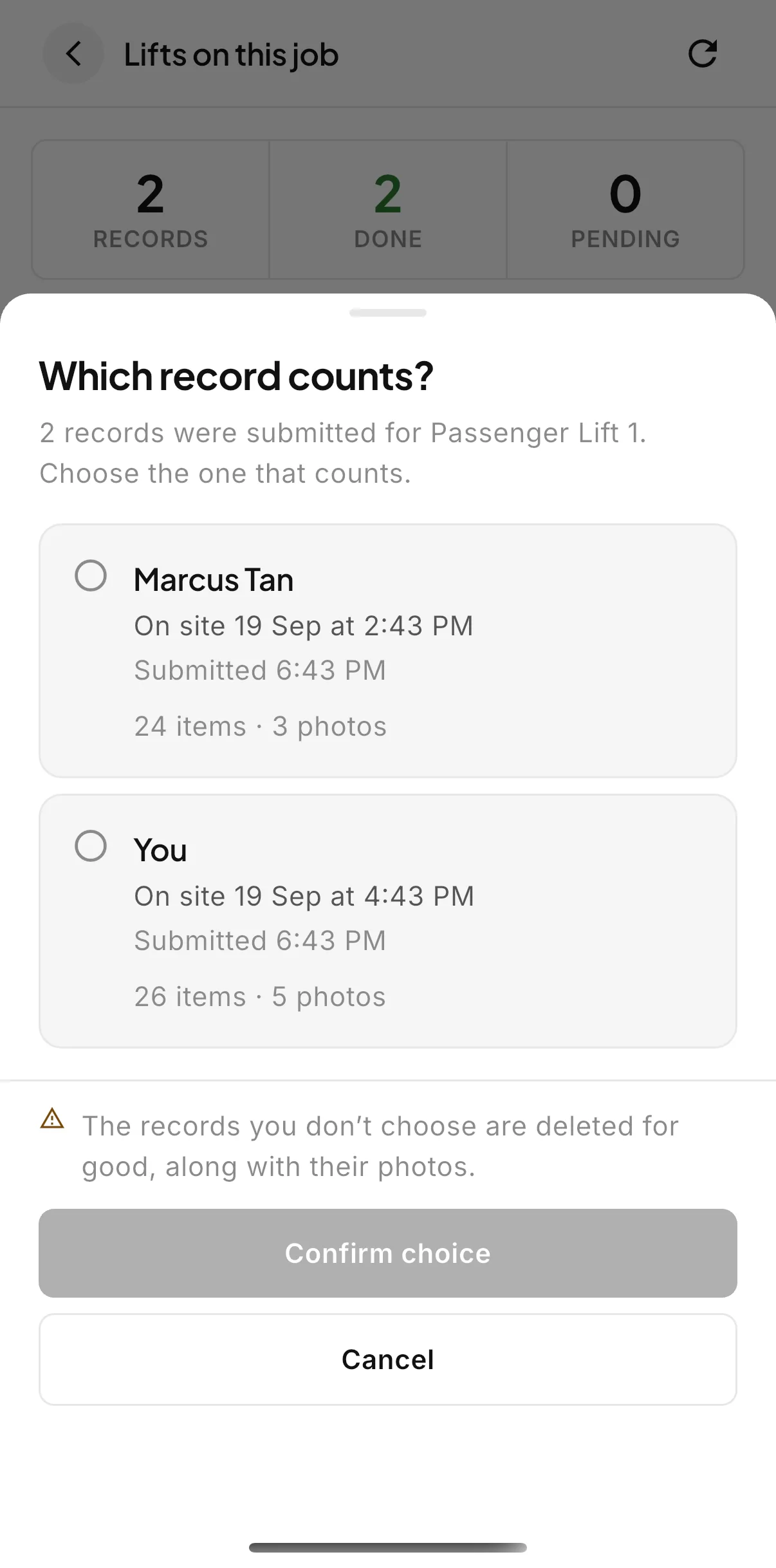
Submit each elevator when its form is done, even with no signal. On a Team Job, if two people recorded the same elevator, the app asks which Record counts.

Pass or failNotesPhotosTeam Jobs
The Which record counts? sheet in the technician app, listing two Records submitted for the same elevator by two Technicians.
03Sign-off

Get the building’s signature on the phone.

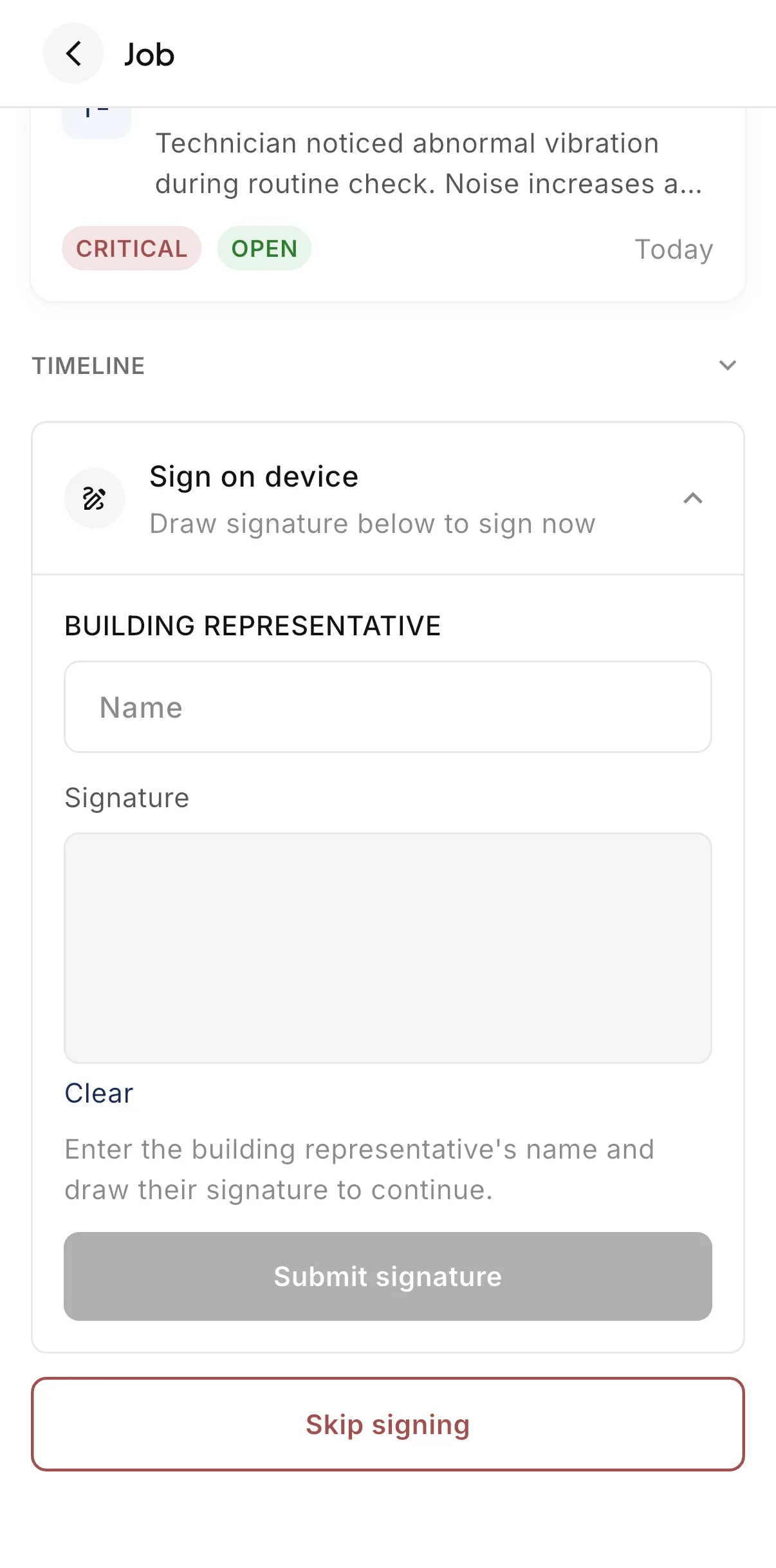
The building representative types their name and signs on the phone. The signature is queued and sent when the phone has signal again.

If they are not on site, share a signing link by message or email. They sign in their browser, with no LiftAuth account or app.

Sign on deviceSigning linkSkip signing
The sign-off screen in the technician app, with the building representative's name field and signature pad.
04Issues

Raise an Issue for work that has to wait.

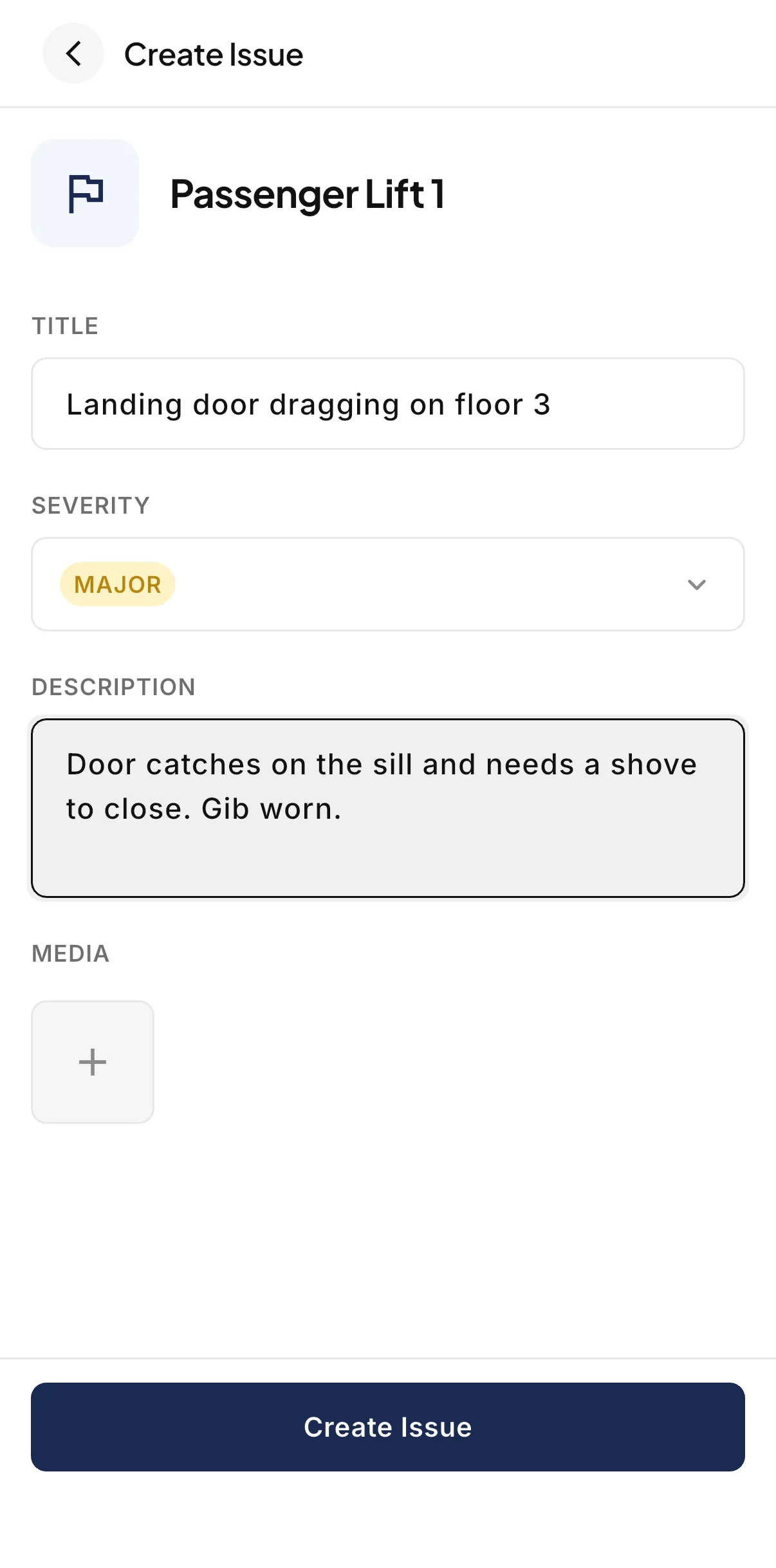
When a Technician finds a problem they are not fixing now, they raise an Issue on the elevator. They set a severity of Critical, Major or Minor and add photos or video.

The Issue goes to the office Inbox. A Critical Issue alerts the office straight away.

CriticalMajorMinor
The Create Issue form in the technician app, with a title, a Major severity and a description of a landing door fault on an elevator.

Field work before and after LiftAuth.

BeforePaper job sheets
  1. Job sheets printed and handed out each morning
  2. Photos sent separately by message
  3. Signatures on paper, scanned at the office
  4. Faults reported by phone at the end of the day
WithLiftAuth
  1. Each Technician’s Jobs on their phone calendar
  2. Photos attached to each form item
  3. A signature on the phone or by a signing link
  4. Issues raised on the elevator, with photos

LiftAuth compared with paper job sheets and messaging apps.

The LiftAuth technician app compared with paper job sheets and messaging apps
CapabilityLiftAuthPaper job sheets and messaging apps
Today’s JobsOn the Technician’s calendarPrinted or sent by message
Working with no signalDownloaded ahead, syncs laterPaper works; photos wait
PhotosAttached to each form itemSent separately
Building sign-offOn the phone or by signing linkSigned on paper, on site only
Elevator history on siteLogbook of past visitsIn the office files
Faults found on siteRaised as an Issue with a severityA phone call or message

More of the platform.

Technician app questions

Does the technician app work with no signal?

Yes, for most of the work. Download a building or a Job ahead, then fill in Records and submit each elevator offline. Submitting the whole Job needs a connection.

Does the building representative need an account to sign?

No. They can sign on the Technician’s phone, or open a signing link in their browser. They do not need a LiftAuth account or an app.

Can a Technician change a Record after it is submitted?

No. Nobody can edit a Record once it exists. If something is wrong, the visit is recorded again.

How do Technicians sign in?

Your office adds them to LiftAuth with their email address. They type that address in the app and enter the 6-digit code LiftAuth emails them.

Can a Technician create a Job the office did not book?

Yes. They pick the job type and the elevators, then start now or schedule it for later. A one-elevator Job started now works with no signal.

Put your next Job on your Technicians' phones.

To talk to us, email hello@liftauth.com or fill in the form here.

We use these details to reply to you and to see which pages you visited first. See our privacy policy.