Issues & Fault Analytics

Elevator fault tracking and Fault Analytics.

Log each fault as an Issue on the elevator it affects. Code what went wrong, and Fault Analytics shows which faults keep coming back and on which elevators. Fault Analytics is in the Pro package.

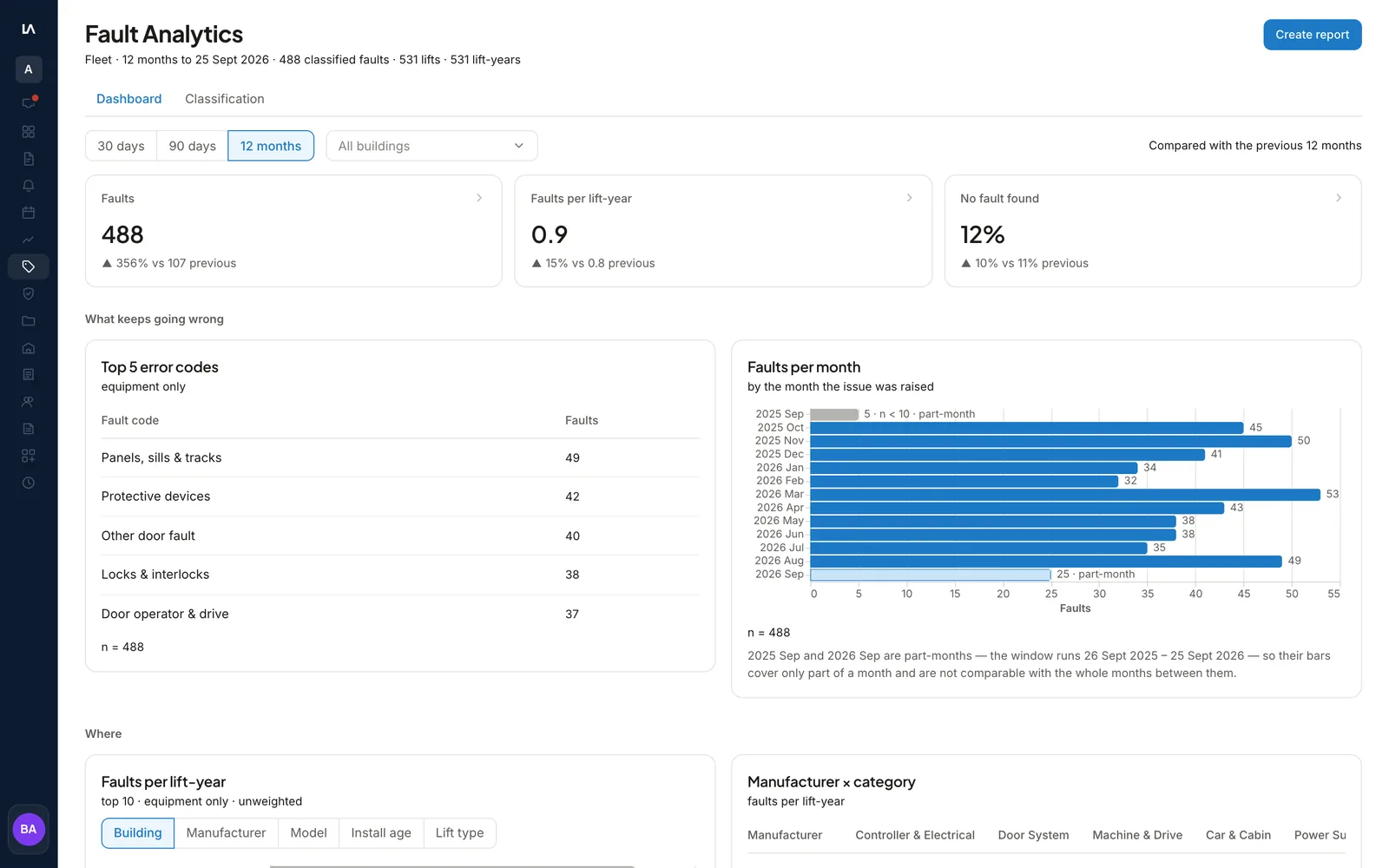
The Fault Analytics dashboard in LiftAuth: the period and building filters, the Faults, faults per elevator-year and No fault found figures, the top five fault codes and faults per month.

What is an Issue in LiftAuth?

An Issue is one fault on one elevator: a sticky door, a strange noise, an elevator gone out of service. It stays Open until someone closes it, and then it is kept in that elevator’s history with the reason.

Fault Analytics counts your Issues across all your elevators. It counts an Issue once somebody has coded it with:

  • one or more fault codes for what went wrong
  • who or what the fault is attributable to, unless no fault was found

What’s included in Issues and Fault Analytics.

Three severity levels

Critical for a safety risk, Major for a degraded elevator, Minor for a cosmetic or low-impact fault.

Photos and video

Attach photos or videos to an Issue so the next person can see the fault.

Issues on the Job

When a Technician starts a Job on an elevator, every Open Issue on that elevator shows in their app.

Closed with a reason

Close an Issue as Resolved, Won’t Fix, Duplicate or Decommissioned. A Technician who marks it Resolved on a Job closes it automatically.

Seen by the Building Manager

The building manager app lists the open Issues on each building, worst first.

A classification queue

Issues waiting to be coded sit in one queue. Pick the fault codes and the attribution, then move to the next one.

The Fault Analytics dashboard

Faults by code, by month, by building and by manufacturer, plus the time each severity takes to close.

Fault reports

Turn one period and one scope into a PDF you can send to a Building Manager.

From a fault on site to a fault report.

01Log the fault

A Technician logs the Issue on the elevator.

In the technician app, the Technician opens the elevator and taps Create issue. They add a title, the severity, a description, and photos or a video.

The Issue goes to your office Inbox, and a Critical Issue alerts your admin immediately. When a Building Manager calls or emails about a fault, your office raises the Issue from the dashboard.
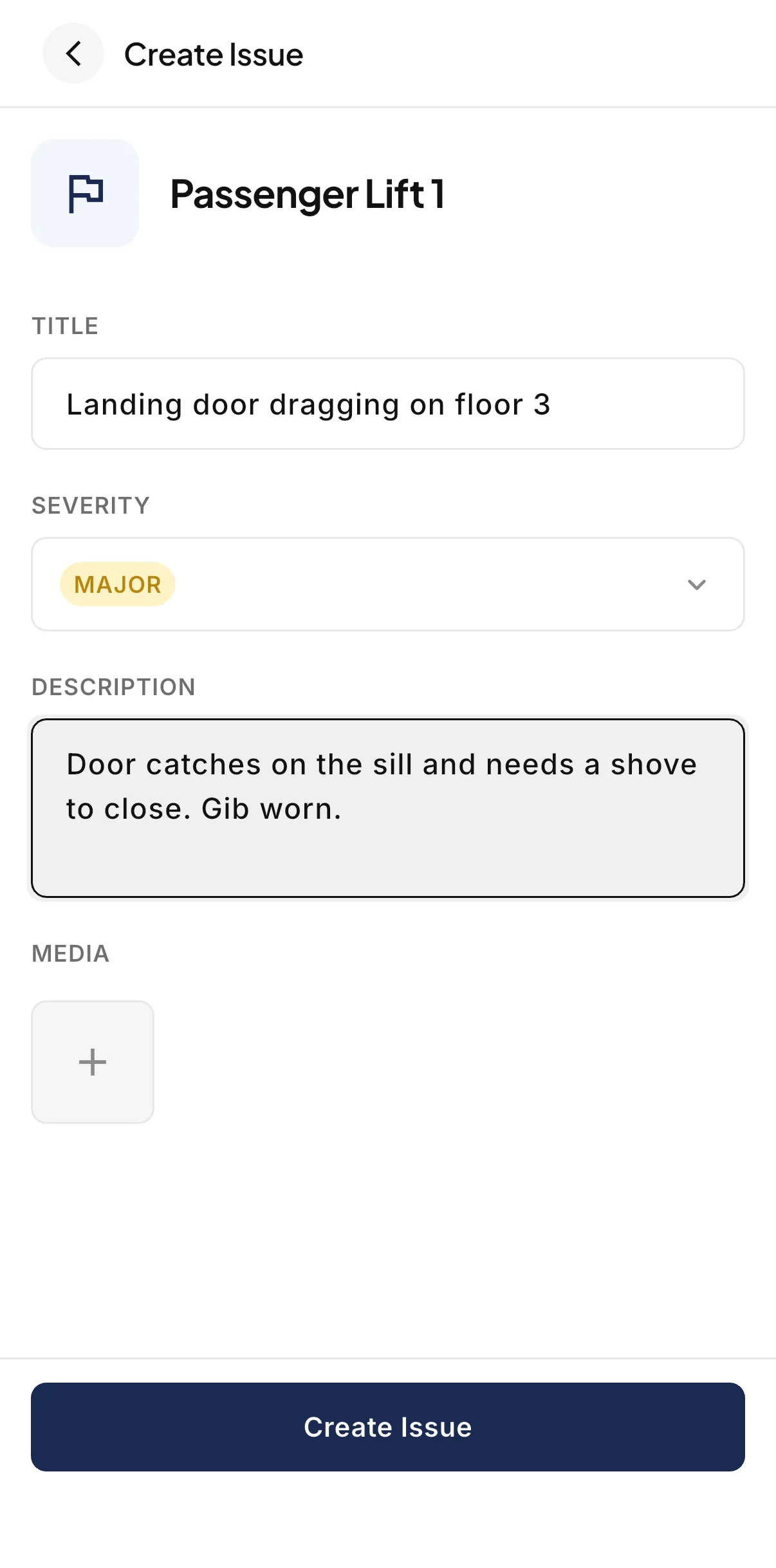
The Create Issue form in the LiftAuth Ops technician app, with a title, Major severity, a description and the media section.
02The Building Manager sees it

The Building Manager sees the Issue in their app.

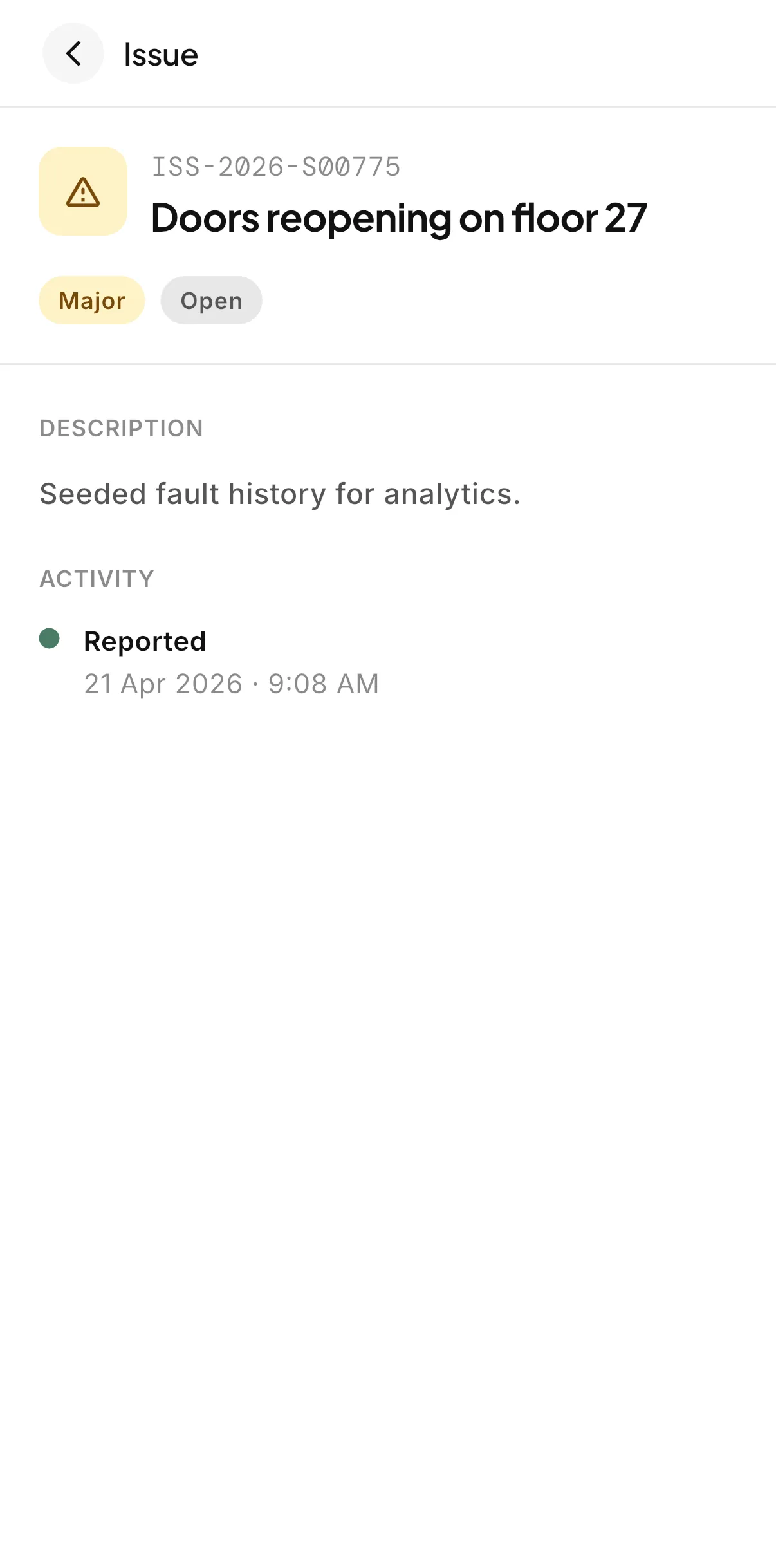
In the building manager app, each building lists its open Issues, worst first. An Issue shows its severity, whether it is open or closed, the description, the photos and video, and when it was reported, updated and closed.

Issues are read-only for the Building Manager. To report a new fault, they call or email you, or message you in the app on Pro.

An open Major Issue in the LiftAuth building manager app, with its reference, description and activity.
03Classify the fault

Code each Issue with what went wrong.

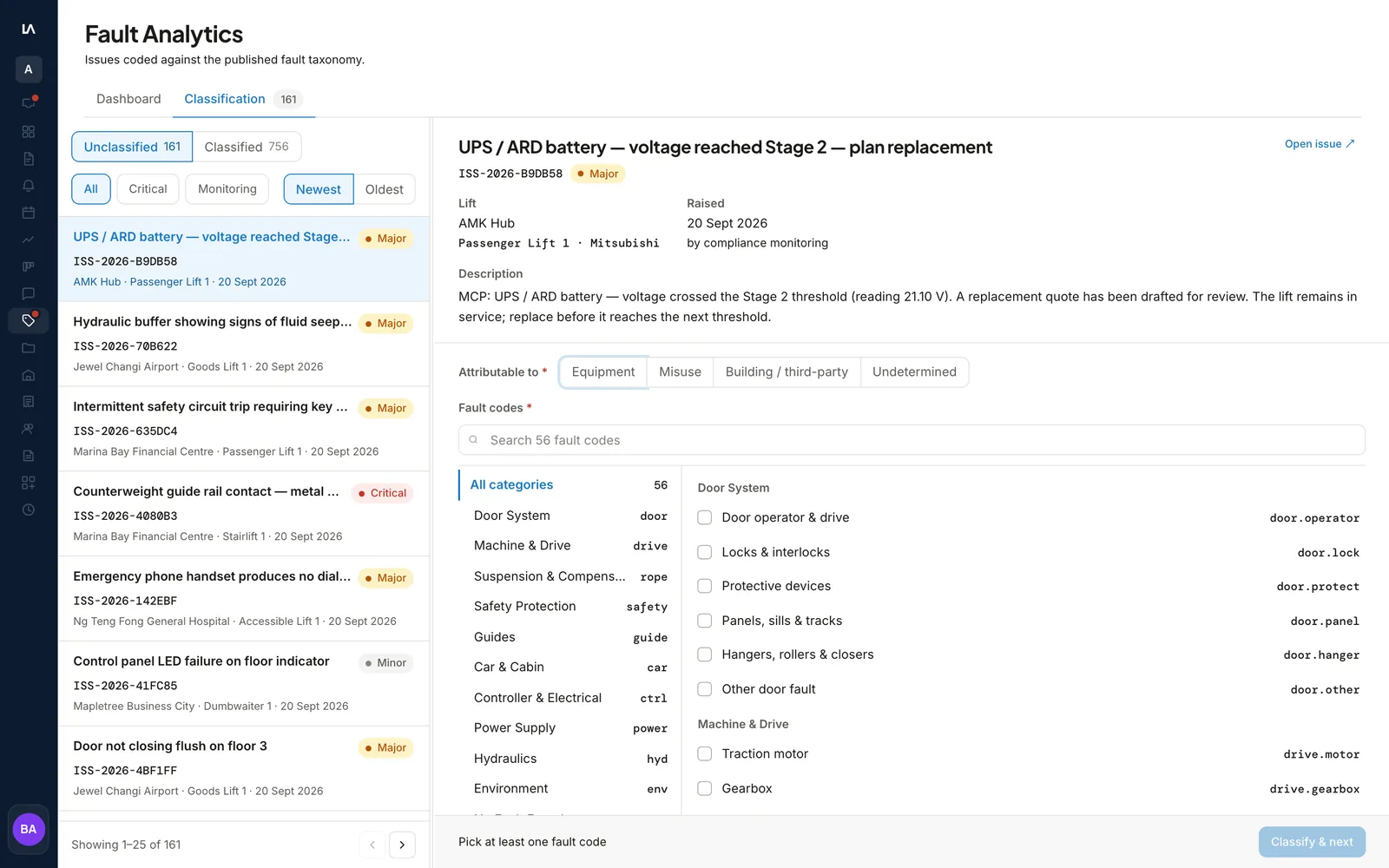
The Classification tab lists the Issues waiting to be coded, newest first. Pick one or more fault codes from the catalog, set what the fault is attributable to, and select Classify & next.

Attributable to is Equipment, Misuse, Building / third-party or Undetermined. To change a coded Issue later, use Reclassify.

Fault codesAttributable toClassify & next
The Fault Analytics Classification tab: the queue of unclassified Issues, one Issue open with its elevator and description, the Attributable to choice and the fault code list.
04Read the figures

See what keeps breaking, then create a report.

Pick a period and a scope: all buildings, one building, or one Building Manager’s buildings. The dashboard compares each top figure with the period before. A figure drawn from fewer than 10 faults is marked n < 10.

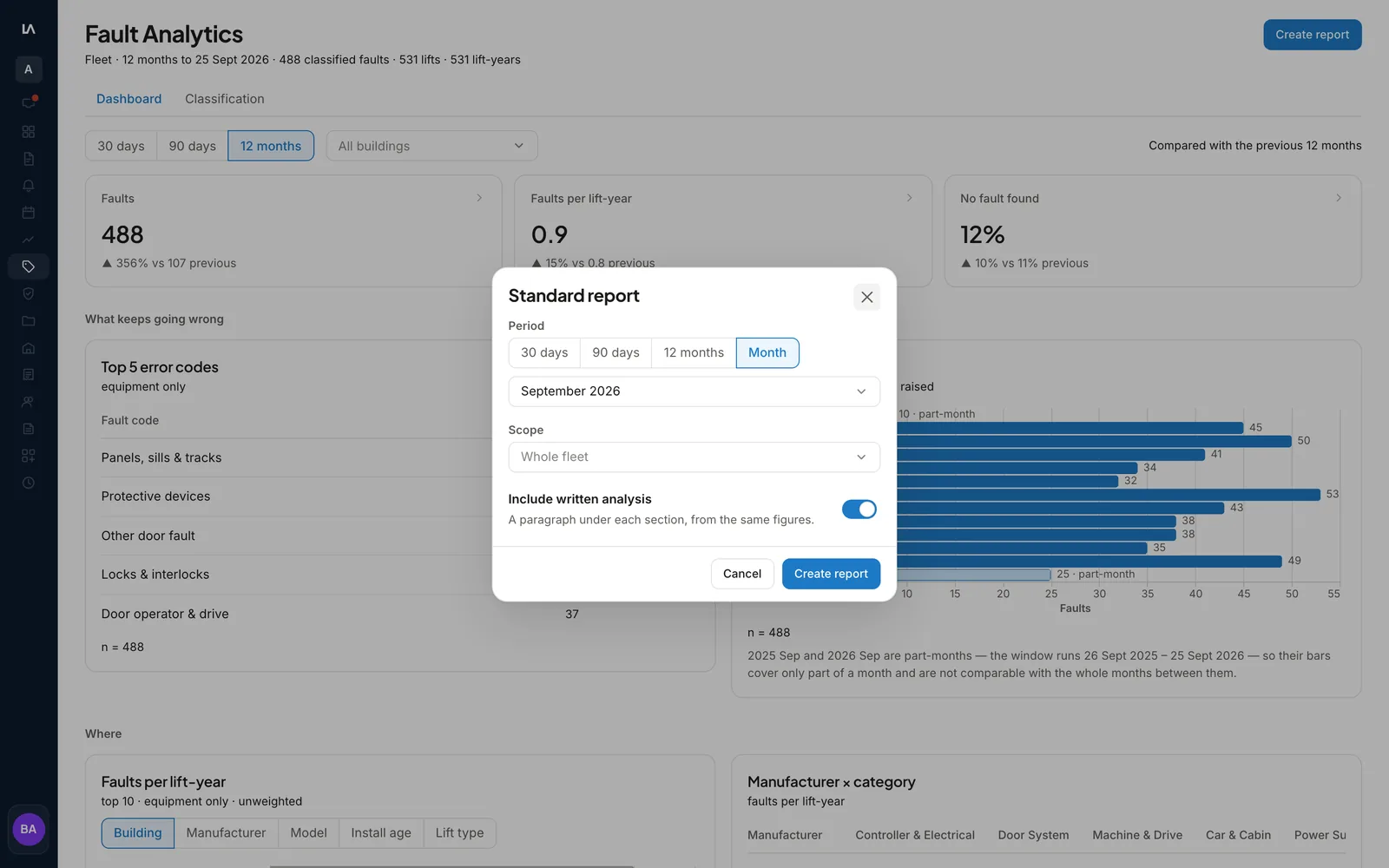
Create report turns the same period and scope into a PDF that downloads to your computer. Turn on Include written analysis to add an AI-written paragraph under each section.

30 days, 90 days, 12 monthsOne building or allPDF report
The Standard report dialog over the Fault Analytics dashboard, with the period, the scope and the Include written analysis switch.

Elevator fault tracking before and after LiftAuth.

BeforeSpreadsheets
  1. Faults reported by phone and noted on a job sheet
  2. Photos kept on each Technician’s phone
  3. A known fault missed on the next visit
  4. Fault counts added up by hand for a building review
WithLiftAuth
  1. Each fault logged as an Issue on its elevator
  2. Photos and video kept on the Issue
  3. Open Issues shown to the Technician on the next Job
  4. A fault report for any period, one building or all

LiftAuth compared with spreadsheets and email.

Elevator fault tracking in LiftAuth compared with spreadsheets and email
CapabilityLiftAuthSpreadsheets and email
Fault logged on siteFrom the technician app, with photos and videoTyped up later from notes
Open faults on the next visitShown on the Technician’s JobSomeone has to remember
Building Manager viewOpen Issues in the building manager appSent by email on request
Fault codes and attributionSet from one classification queueA free-text column
Fault figuresA dashboard and a PDF reportBuilt by hand each time

More of the platform.

Issues and Fault Analytics questions

Who can raise an Issue?

Owners, Admins and Technicians can raise, edit and close Issues. Call Center users can only view them. A Building Manager reports a fault by calling or emailing you, or messaging you in the app on Pro, and your office raises the Issue.

Does every Issue count in Fault Analytics?

No. Every figure counts classified Issues only. An Issue nobody has coded is in no chart, so work the Classification queue first.

Does LiftAuth send the fault report to the Building Manager?

No. The PDF downloads to your computer, and you send it yourself. Each report covers one period and one scope.

Can a closed Issue be reopened?

No. A closed Issue stays in the elevator’s history with its close reason. If the same fault comes back, raise a new Issue.

Is the written analysis always in the report?

No. It is a switch on the report, Include written analysis. The analysis uses your firm’s monthly AI allowance, and when that has run out the report carries the figures only.

See which elevators keep breaking down.

To talk to us, email hello@liftauth.com or fill in the form here.

We use these details to reply to you and to see which pages you visited first. See our privacy policy.