Maintenance scheduling

Elevator maintenance scheduling from each Maintenance Contract.

Set up a Maintenance Contract once. LiftAuth plans every visit for the whole term and creates each Job with the Technician and time already filled in.

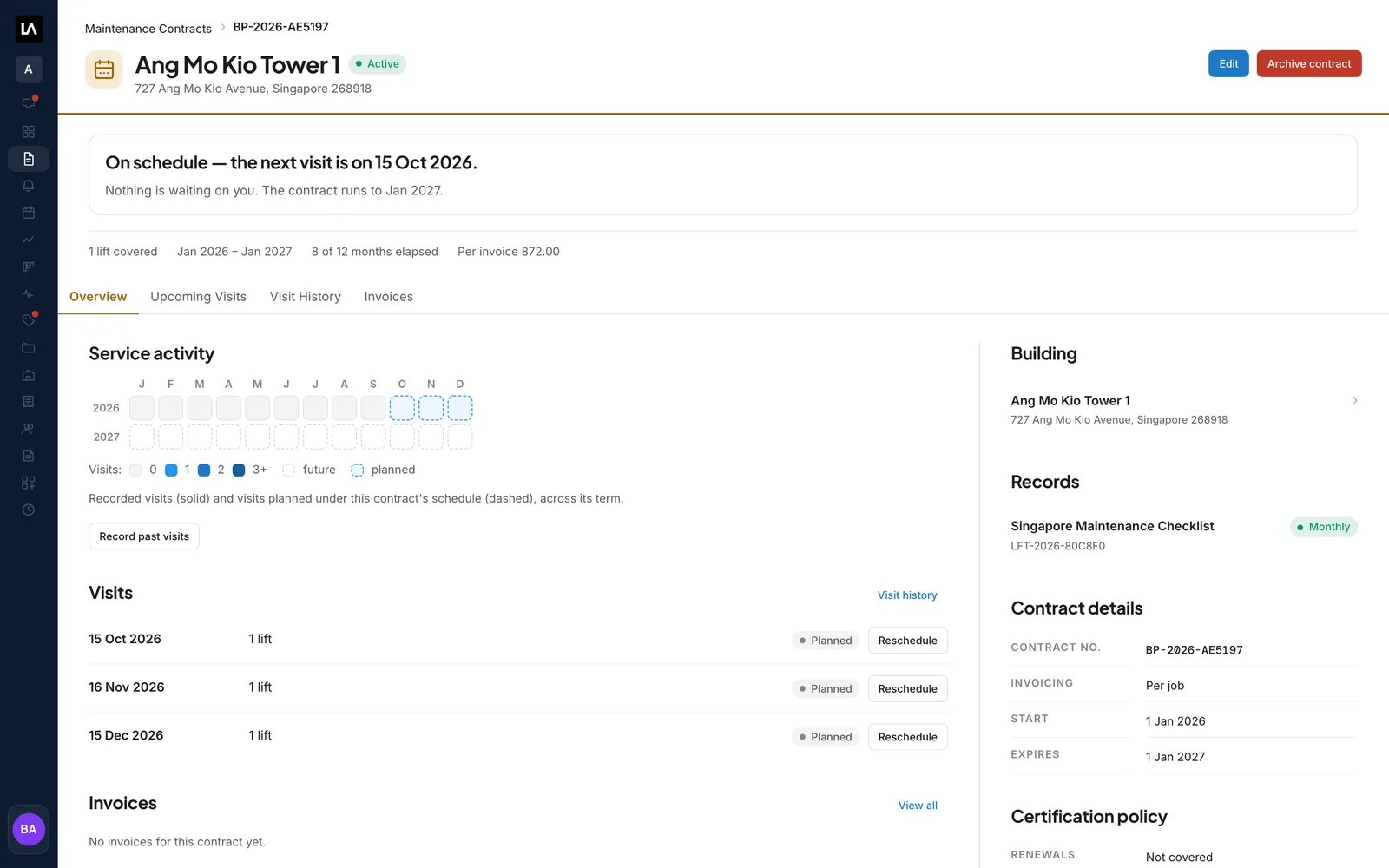
A Maintenance Contract in LiftAuth: a year grid of recorded and planned visits, the next three visits, and the contract's invoicing and term.

What is maintenance scheduling in LiftAuth?

A Maintenance Contract is the servicing agreement you hold with a building. It says which elevators you service, how often, who does the work, how the building is billed and when the agreement ends.

From the contract, LiftAuth works out every visit for the whole term. Then it does the following on its own:

  • Fourteen days before each visit, it creates the Job, already assigned and time-slotted.
  • It sends each Building Manager’s firm one digest email for the Jobs it created overnight.
  • When the contract bills per Job, it drafts an Invoice each time a Job closes.
  • When the contract bills once a year, it drafts the Invoice at the end of the start month.
  • When the term ends, the contract expires and stops producing work.

What’s included in maintenance scheduling.

A cadence per elevator

Each elevator on a contract has its own cadence: monthly, quarterly or every 1 to 24 months.

Your form per elevator

Each elevator is paired with the record template your Technician fills in on the visit.

Technician or Team

Assign the contract to one Technician or one Team, with a preferred day of the month and a start time.

Jobs created ahead

Each visit becomes a Job 14 days before it is due, with the Technician and time filled in.

Upcoming visits

Every future visit for the term is listed on the contract, with a Reschedule button on each one.

Long visits

A visit that does not fit one working day continues on the next workdays. Each day can be moved on its own.

Past visits

Log the visits that happened before LiftAuth, or upload the signed PDFs and LiftAuth reads the details out of them.

Billing from the contract

Draft Invoices per Job, once a year or not at all, with the invoice lines set on the contract.

From contract to Job on the calendar.

01Set up the contract

Build the contract in five steps.

The builder walks through the elevators and their forms, billing, annual inspection, the schedule, and a final review.

A contract covers one building. Every elevator on it needs a record template, and nothing picks one for you.

Elevators & formsBillingScheduleTerm
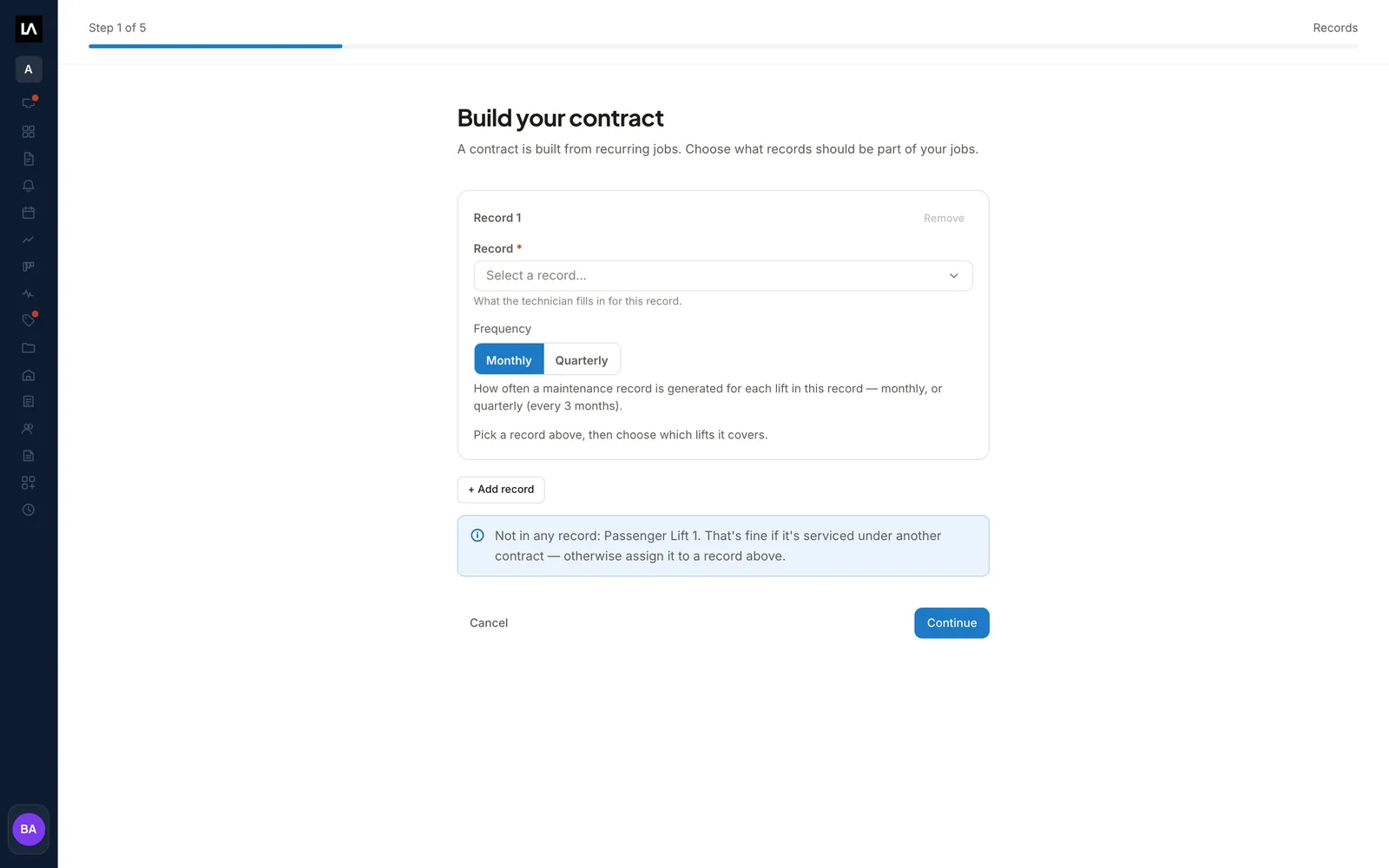
Step one of the Maintenance Contract builder, pairing each elevator with a record template and a cadence.
02Every visit, planned

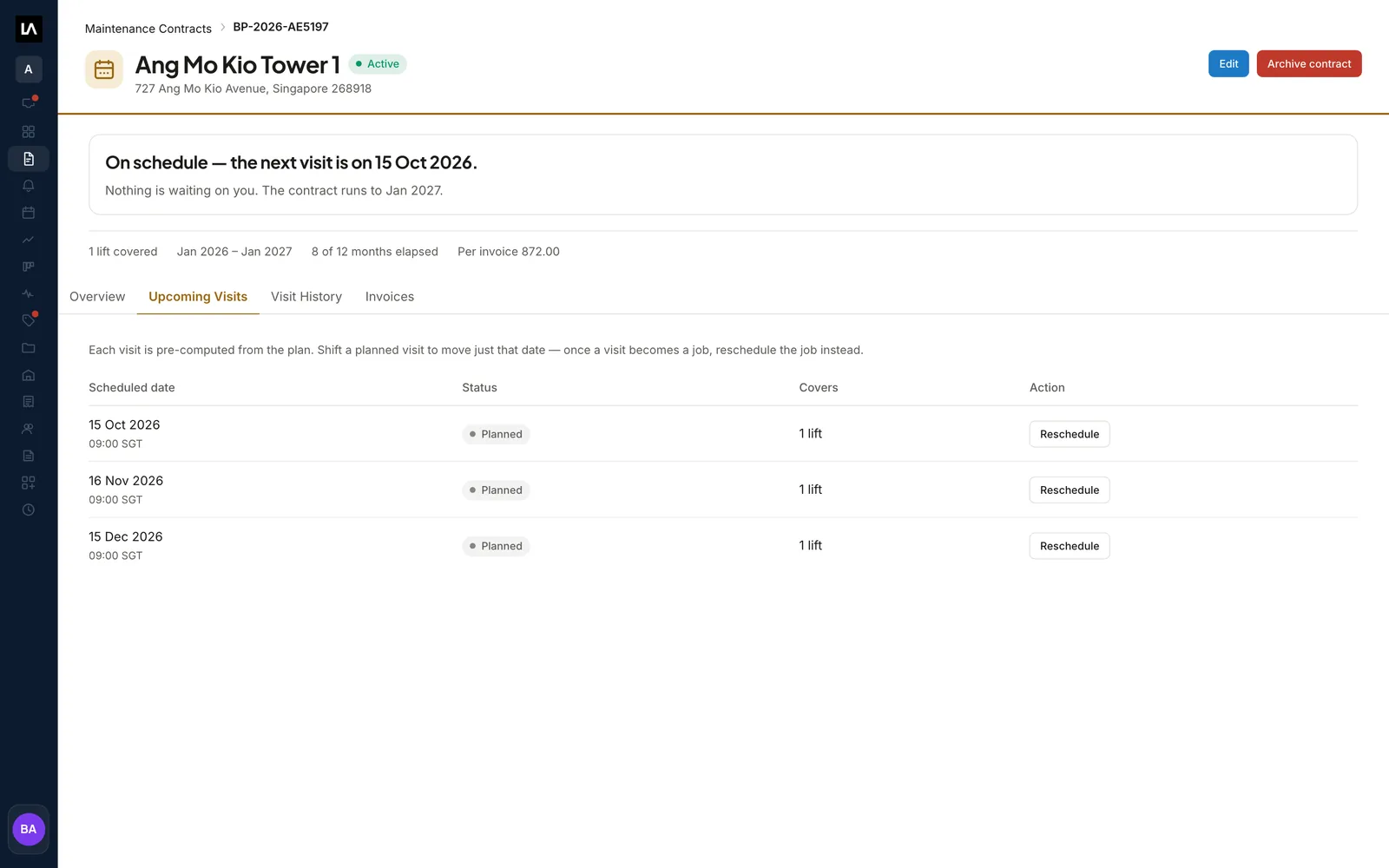
See every visit for the term on the contract.

The Upcoming Visits tab lists every visit the contract will produce, with the date and how many elevators it covers.

To move one visit, select Reschedule and pick a new date. The rest of the schedule stays as it is.

Upcoming VisitsRescheduleVisit History
The Upcoming Visits tab on a Maintenance Contract, listing each future visit with a Reschedule button.
03Jobs on the calendar

Jobs arrive on the calendar already assigned.

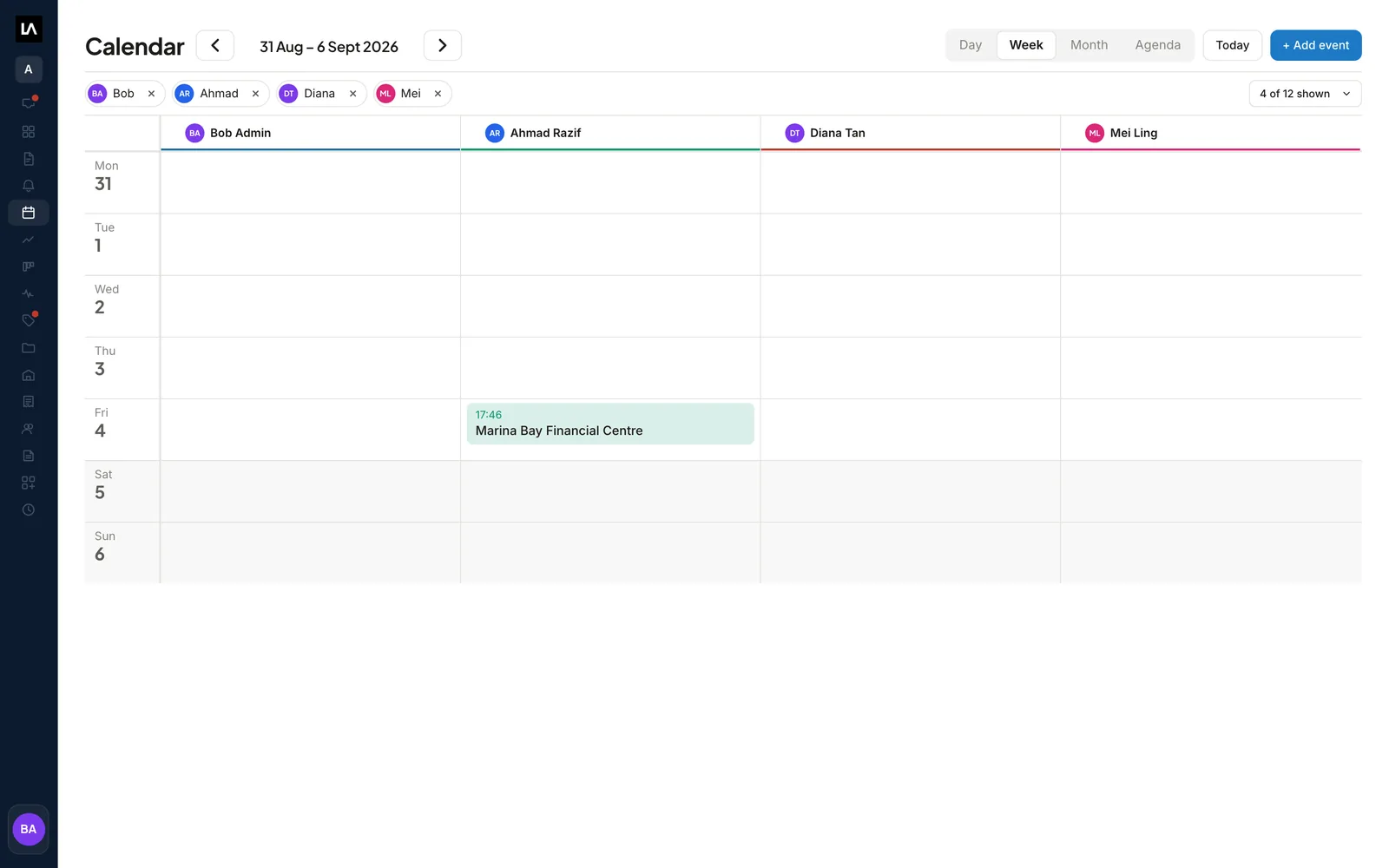
Fourteen days before a visit, LiftAuth creates the Job for the assigned Technician or Team, at the contract’s start time. Visits further out show on the calendar as planned Jobs.

Select people in the calendar to see their weeks together, each in their own color. Drag a one-person, single-day Job to move it.

Day, Week, Month, AgendaPlanned JobsDrag to move
The LiftAuth calendar in week view, with Jobs for several Technicians in their own colors.
04On the Technician’s phone

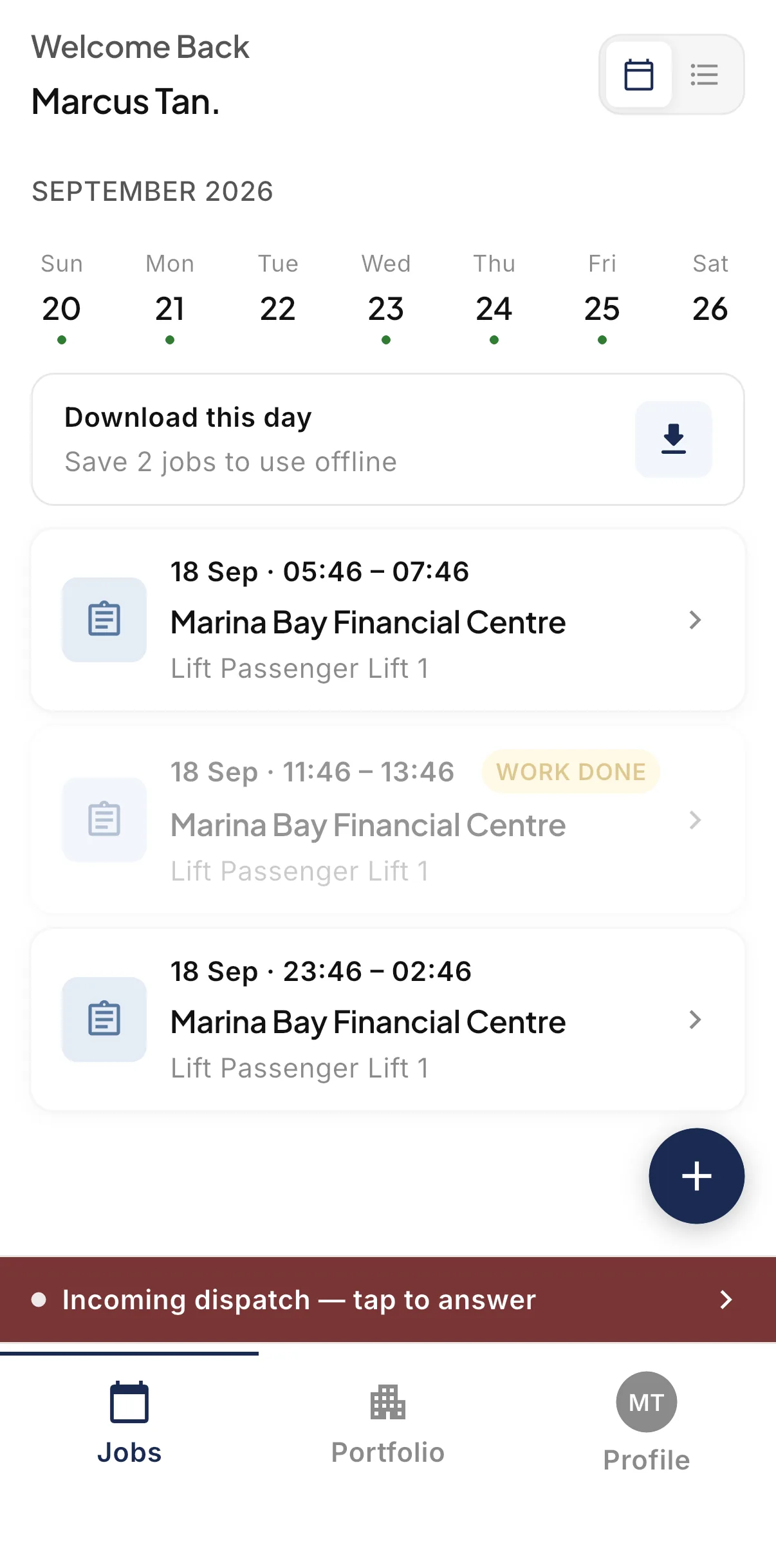
Technicians see their Jobs in the technician app.

Each Job appears in the Technician’s calendar on their phone, with the building, the elevators and the forms to fill in.

The Jobs calendar in the LiftAuth Ops technician app.

Maintenance scheduling before and after LiftAuth.

BeforeSpreadsheets
  1. Next month’s visits copied from a spreadsheet by hand
  2. Each Technician told their week by phone or message
  3. A missed visit found only when the building calls
  4. Invoices written from the job sheets at month end
WithLiftAuth
  1. Every visit for the term worked out from the contract
  2. Each Job created 14 days ahead, already assigned
  3. Upcoming visits listed on the contract and the calendar
  4. A draft Invoice per Job or once a year

LiftAuth compared with spreadsheets and shared calendars.

Maintenance scheduling in LiftAuth compared with spreadsheets and shared calendars
CapabilityLiftAuthSpreadsheets and shared calendars
Visits for the whole termWorked out from the contractEntered by hand
Cadence per elevatorMonthly, quarterly or every 1 to 24 monthsOne repeat rule per calendar entry
Jobs assigned ahead14 days before each visitSomeone has to remember
Form for each elevatorSet on the contractPaper or a separate app
InvoicesDrafted per Job or once a yearWritten separately

More of the platform.

Maintenance scheduling questions

How far ahead does LiftAuth create maintenance Jobs?

Fourteen days before each visit. Visits further out show on the contract’s Upcoming Visits tab and on the calendar as planned Jobs.

Can elevators on one contract have different cadences?

Yes. Each elevator has its own cadence: monthly, quarterly or every 1 to 24 months. The contract then shows its frequency as Mixed.

Can I move one visit without changing the rest?

Yes. Select Reschedule on the visit in the Upcoming Visits tab. Make any contract edits first, because saving an edit puts hand-moved visits back on their worked-out dates.

Can I bring in visits from before we used LiftAuth?

Yes. Record past visits adds them as completed Records for the building. You can type them in or upload the signed PDFs and check what LiftAuth reads from them.

Does LiftAuth create the Invoices too?

It drafts them. A contract can draft one Invoice per Job, one a year, or none. Someone in your office still reviews and sends each one.

Schedule a year of maintenance in one sitting.

To talk to us, email hello@liftauth.com or fill in the form here.

We use these details to reply to you and to see which pages you visited first. See our privacy policy.